A customer enters an address five miles from your store and sees the nationwide shipping rate. Another customer gets free shipping even though their order is below the threshold. The problem may not be the fee itself. It may be the order in which your shipping zones are configured.
WooCommerce shipping zones are powerful, but the rules are easier to understand if you imagine the checkout working through a list. It starts at the top and stops at the first zone matching the customer’s address.
How a shipping zone works
A shipping zone is a geographical area with one or more methods, such as flat rate, free shipping or local pickup. A shopper is matched to one zone based on their shipping address. WooCommerce uses the first matching zone, not every eligible zone combined.
This explains why the most specific areas usually belong at the top. If a broad United States zone appears above a zone for a handful of local ZIP codes, the broad zone may capture those addresses first and prevent the local rule from taking effect.
Build zones from narrow to wide
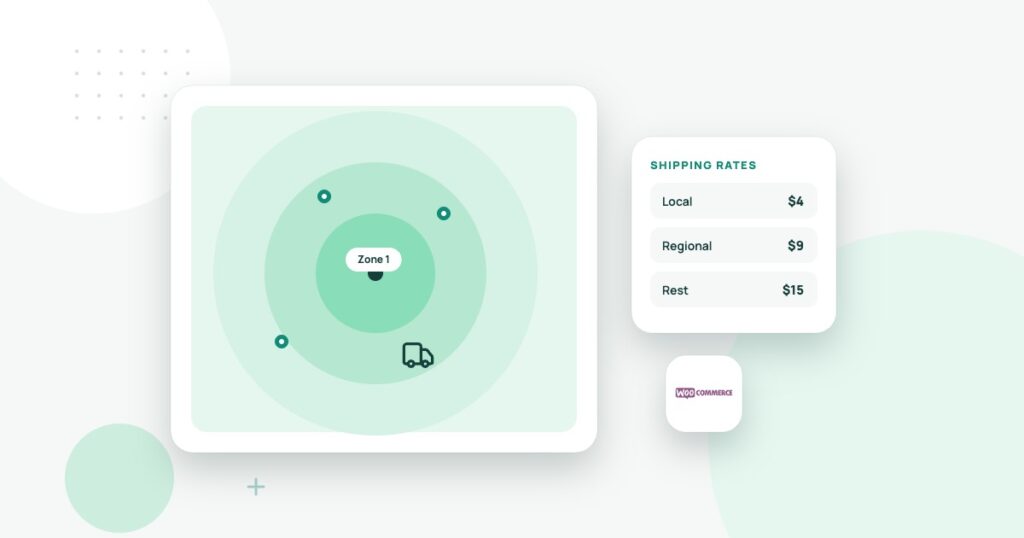
Imagine a fictional shop with three delivery areas. The first covers a limited group of postal codes within the city. The second covers surrounding towns. The third handles the rest of the country through a carrier.
The order should be Local Core first, Nearby Metro second and Domestic Shipping after those. Each zone needs a clear region definition. A label alone does not determine which addresses match.
| Zone | Example region | Possible method |
|---|---|---|
| Local Core | Specific nearby ZIP codes | Local delivery flat rate |
| Nearby Metro | Selected towns or postal codes | Higher delivery flat rate |
| Domestic | Remaining supported country regions | Carrier or standard shipping |
| Rest of the world | Any unmatched address | No shipping method unless supported |
These are illustrative zone names, not prescribed rates. The right charges depend on distance, labor, packaging and your business model.
Free shipping is a separate decision
Once an address matches a zone, WooCommerce determines which methods are available there. Free shipping can be configured with conditions, such as a minimum order amount, depending on the enabled method and settings.
Check whether discounts affect the minimum and whether your displayed threshold agrees with the checkout calculation. If the site promises free local delivery over $75, test a $74.99 cart and a $75.01 cart with a qualifying address. The expected behavior should be obvious.
What if some products cannot be shipped?
Shipping zones alone may not handle every product restriction. For instance, chilled drinks might require local delivery while shelf-stable products may be shipped nationwide. A site can need shipping classes, carefully chosen extensions or custom checkout logic to enforce those conditions.
Test a cart containing only restricted items, only eligible items and a mixture. Without those tests, a customer may see a method that the business cannot actually fulfill.
Use the customer address, not your assumptions
Postal codes and city names can be inconsistent. A nearby town may share a postal code pattern with a larger area. Do not rely entirely on visual distance from a map. Check a sample of real addresses at the boundaries and verify that the expected zone appears.
A practical testing table
| Test case | What should happen |
|---|---|
| Inside local ZIP | Local zone and its rate appear |
| Just outside local ZIP | Next eligible zone applies |
| Below free-shipping threshold | Paid method still available where appropriate |
| Above free-shipping threshold | Conditional free method appears, if configured |
| Unsupported destination | Clear message, no impossible checkout promise |
| Restricted product | Only permitted delivery options |
Why checkout messages matter
Customers should understand the difference between local delivery, carrier shipping and pickup. If your operation delivers only on selected days, tell people near the shipping choices or checkout summary. A customer does not automatically know that a paid local delivery charge comes with a delivery schedule.
Make sure your order confirmation communicates the method the shopper actually selected. Keep customer support details available if they entered an address incorrectly.
Fix the underlying rule before adding another plugin
When a zone does not match as expected, first check region definitions and ordering. Only add a new shipping extension if you truly need behavior the core features cannot support. Each extension introduces another piece of software to update and test.
The most specific shipping rule should win
WooCommerce shipping zones are geographic matches, not labels that a customer chooses freely. A store serving a city center, surrounding suburbs and the rest of the country should place narrow matches ahead of broad catch-all coverage where the configuration requires it. Otherwise customers may receive a method that was not intended for their address.
Build a test table before changing live settings. Include an address inside each zone, one on a boundary, one outside the local delivery area and one with an invalid postal code. Check available delivery methods, rates, free-shipping thresholds and product restrictions in the actual checkout.
| Test address | Expected outcome |
|---|---|
| Core local area | Correct local delivery fee or threshold |
| Outer delivery area | Different fee if the business offers it |
| Outside coverage | No unauthorized local method appears |
| Unsupported product | Delivery restrictions are enforced clearly |
A free-shipping label is not a completed business rule
Define whether thresholds are calculated before or after discounts and taxes and how mixed carts should behave. A store might offer local delivery above a minimum basket value while restricting refrigerated products to selected areas. Native settings and plugins can handle different parts of the rule, but the merchant must test how they interact.
Check the official WooCommerce shipping zones documentation for current behavior. Avoid stacking multiple shipping extensions until the business knows which rule the existing configuration cannot express. A short, accurate checkout message should explain delivery eligibility without promising service outside the intended area.
Reconcile each change against real orders
After updating zones, simulate a complete checkout with each test address and confirm that tax, shipping and final total remain correct. Document the changes so staff know which area a customer belongs to and how to handle exceptions. The goal is not the maximum number of shipping zones; it is a small, predictable delivery system customers can understand.
Delivery rules and order states must agree: a paid order is not automatically shipped. The WooCommerce order status guide explains what staff should verify after checkout, while the store hosting checklist covers the infrastructure behind a working order flow.
Official sources
WooCommerce explains zone matching and ordering in its shipping zone setup documentation. See also WooCommerce order status guidance for what happens after an order is placed. Information reviewed November 2026.


