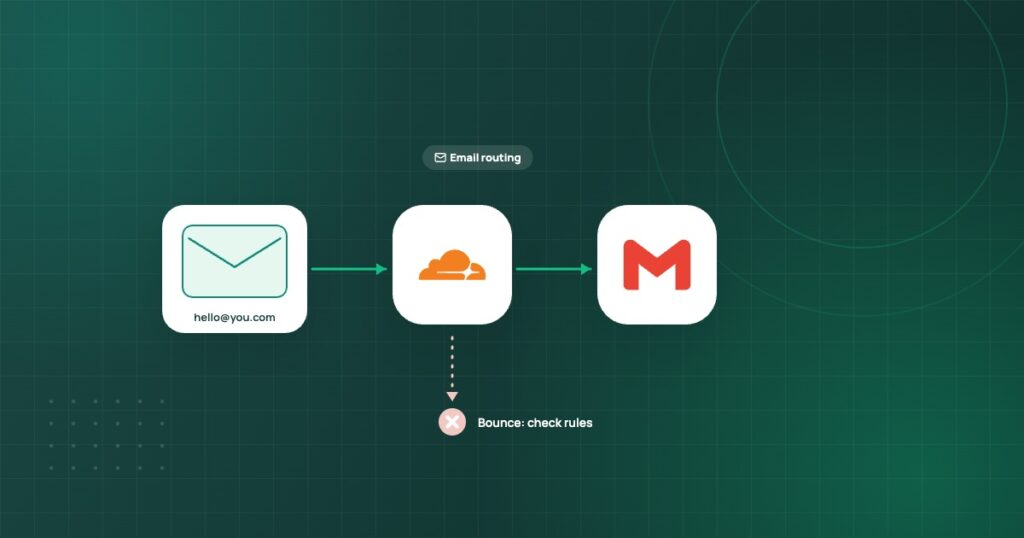
Setting up an address such as [email protected] seems simple until the first test email bounces. The forwarding rule looks active, the destination is verified and yet the sender receives a delivery failure. At that point, creating more forwarding rules is usually not the answer.

Think of email forwarding as two separate jobs. DNS tells the internet which mail system is responsible for receiving messages for the domain. That system then checks its routing rule and forwards the message to the destination inbox. Both parts must work.
What Cloudflare Email Routing does
Cloudflare Email Routing receives mail sent to an address at your domain and forwards it to a verified destination address or another configured destination. It is an inbound routing service. It does not turn your domain into a complete outgoing mailbox where you can automatically send authenticated messages from the same address.
If you want to reply as [email protected], you must separately plan for a suitable sending service, mailbox or verified outgoing setup. Do not assume the Gmail inbox receiving forwarded messages automatically has permission to send as that address.
Step 1: Check where DNS is actually hosted
A domain can be registered with one company, hosted at another and use Cloudflare for DNS. Only the authoritative DNS records matter for mail delivery. If nameservers point to Cloudflare, the mail records must be correct in Cloudflare, regardless of which dashboard sold you the domain.
Start by confirming the domain’s current authoritative nameservers. Avoid editing a registrar DNS screen that is no longer authoritative. It is possible to save a perfectly valid MX record in the wrong place and see no effect.
Step 2: Check for competing MX records
MX records tell sending servers where incoming mail should go. A common mistake is keeping the old hosting provider’s MX records alongside Cloudflare’s forwarding records. Mail might then reach a system that does not know about your forwarding rule.
Cloudflare’s onboarding process can add the necessary MX and supporting TXT records. Review the domain’s entire MX list, not just the newest entries. Remove conflicting values only after confirming you no longer rely on the old provider to receive email.
Step 3: Verify the destination address
The target mailbox must be authorized to receive the forwarded mail. Use the Cloudflare Email Routing settings to confirm the destination is verified. A forwarding rule aimed at an unverified address may not be active for delivery.
Double-check spelling. A misspelled Gmail address may look reasonable on a crowded dashboard. Send a test message from a separate mailbox that has never sent to the domain before.
Step 4: Inspect the rule for the exact address
If the address is [email protected], make sure the rule is for info rather than contact or hello. A catch-all can route otherwise unmatched addresses, but it may collect spam aimed at random names. For a new small website, a handful of explicit addresses is easier to understand and maintain.
What does “554 5.7.1 Relay access denied” mean?
This response generally means the receiving system refused to relay the message. In a forwarding setup, the likely investigation starts with the MX destination, routing authorization and any old mail server still receiving traffic. The error is not, by itself, proof that your destination Gmail inbox has blocked the sender.
If you recently changed DNS, the sender may still be reaching the previous mail system. Check whether the failing message’s headers or bounce details identify which server responded. If the error persists after routing is fully active, contact the provider that returned the rejection with the full delivery diagnostic, excluding any private credentials.
What does “Syncing” mean?
A syncing or pending configuration status does not establish that all senders can reach the correct server. DNS propagation and provider verification may take time. Cloudflare says changes typically complete quickly when Cloudflare DNS is authoritative, but some changes can take up to 24 hours to propagate. Do not call the setup working until a real test from an external sender succeeds.
A five-minute troubleshooting sequence
- Confirm the domain is using Cloudflare nameservers.
- Review every MX record and identify any old email provider.
- Confirm the destination address is verified.
- Confirm the exact forwarding rule is enabled.
- Send a fresh test email from a different provider and check the activity log and bounce details.
Forwarding is not mailbox hosting
This distinction matters for business communication. Forwarding is an economical way to receive messages at a custom domain. But outgoing replies, customer support workflows, deliverability and archiving may eventually justify a complete hosted mailbox. A contact address should be tested as part of your launch checklist, not treated as working simply because an MX record exists.
Use a clear subject in a test message and check how long it takes to arrive. Reply and verify the sender identity. If the reply shows a personal Gmail address when you expected the business domain, address that before listing the business address widely.
Forwarding is not the same as sending
Cloudflare Email Routing can forward mail addressed to a custom domain, but receiving messages and sending as that domain involve different services and authentication records. A forwarded inbox is not automatically a full mailbox with independent storage and outgoing SMTP. Businesses should identify where incoming messages arrive and which provider is responsible for outgoing messages.
Start by checking the authoritative nameservers. If the domain’s DNS is hosted elsewhere, editing records in a dashboard that is not authoritative will not change live mail routing. Inspect MX records and any existing mailbox provider before enabling a forwarding service. Removing required MX entries can interrupt mail that is still in use.
A controlled delivery test is more useful than a screenshot
| Check | What to verify |
|---|---|
| Custom address | Routing rule matches the exact recipient |
| Destination mailbox | Verified and able to receive external messages |
| DNS | Required MX and TXT records are active |
| Authentication | Forwarding behavior is understood for SPF, DKIM and DMARC |
| Outbound reply | A separate authorized sending service is configured if needed |
Send from two unrelated mail providers and inspect both the result and any bounce message. A forwarding failure can be caused by address verification, incorrect DNS, the destination rejecting the message or authentication problems after forwarding. The exact SMTP status and mail headers are more useful than guessing from a dashboard status label.
Keep business continuity in mind
For an agency, a forwarded address may be sufficient for low-volume enquiries. A high-volume shared support inbox may need a true mailbox or help desk with ownership, auditability and reliable reply handling. Ensure the destination is company-controlled and remains available when a staff member leaves. Email routing is useful only when the incoming message reaches someone who can act on it.
Before changing DNS, review which provider controls the domain’s authoritative records. For messages that fail after forwarding, the SPF, DKIM and DMARC guide explains the authentication results worth inspecting.
Cloudflare’s email authentication overview explains how SPF, DKIM and DMARC help receiving systems assess sender identity. When a forwarded message is rejected, inspect the actual authentication results and the receiving provider’s response instead of changing DNS records by guesswork.
Official references
Cloudflare’s Email Routing setup documentation explains the routing steps and required DNS records. Consult the provider’s current dashboard and troubleshooting documentation because menu names may change. Reviewed November 2026.


